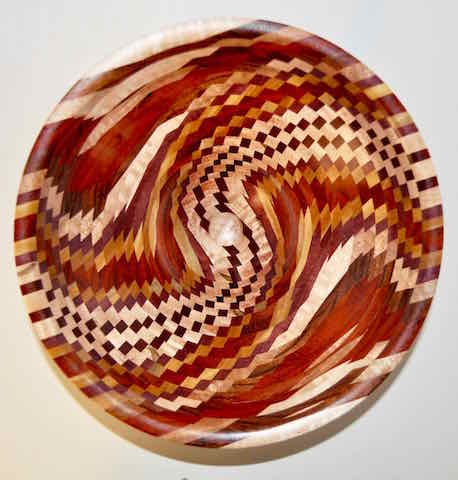
Just finished this one up. 14" piece of Yellow Heart. Never tried it in a basket illusion before and I'm not sure I like it. Yellow is a bright color but it still makes some of the colors seem subdued. However, it turns nicely and doesn't tear out in the beading process.
I put a detailed Herringbone weave on this one that's keyed to the index lines. Made me cross eyed doing it but it seems to have turned out pretty well. And the wife did a nice beaded center piece.
This one goes to the Eastern Maine Wood Turners meeting next Thursday evening. I'll take along one similar but without any rim design just to show the differences.
>>>Again, I can't send anything any larger; the forum won't accept it. Not sure what to do about that.
The file size of your photo is probably too big. Reduce it. One way is to keep reducing the pixel size of the photo until the file size gets small enough (100Kb or less). This is undesirable since sometimes the picture gets too small.
A better way is to increase the JPG compression of the file to keep the pixel size large enough but make the file size small enough. There are many ways to do this. I use Photoshop but Windows Paint also works.
Ellis recently wrote this about a free on-line program to fix the problem:
I'm an Apple guy too and I use Adobe Photoshop Elements to export a file for the web. I believe Photos does the same thing. You can select the quality of the jpeg for the export. I've also used a program called Pixelmator to do the same thing.
On IOS, I use an app called Photo Comp. it is hit or miss and sometimes you need to do the compression a few time to get the settings right.
I use a Mac also but have photoshop. When i save a.photo it has a.slider that i can drag to change the file.size. Im not home but i think there is a way to size photos on my computer without using photoshop. Ill be home for the weekend later tonight and will try to figure it out
Both Photoshop (I use PS 6) and Photoshop Elements (I use version 13) have a "Save for Web" option which makes this trivial: crop and resize as desired, then choose "Save for Web". There is an option to type in 100 K maximum. It will force the image to be 100 K or less.
Jerry On my MaC of I save the image on Deskstop as a JPG and then double click on it, it pops up on the screen with Preview in the top. Click on File, and then Export. A window will pop up so you can rename it and change the quality. Just for the heck of it I changed this one to really low and will see what happens. All you really need to do is drag it so that the file size is smaller than 95. I made this one 34 and it still came out fine as you can see.
I meant to add that this had been sized to 1200 pixels on the long end and over 95K so that it fit on another site. Way to large for Woodcentral. I usually make my images 600 pixels in the long direction for this site and then reduce the quality until it's under 95K
Really depressed about this John. I did everything you said. Already knew all that anyway, but thanks for the advice. What happens is that running the quality down does exactly that; the detail is terrible. So I'm giving up for now. If I can find a Photo Editing program that will make a picture the forum will accept that's of large enough size to show the detail, I'll try it again. Otherwise, I'll be around but won't be doing any picture posting.
I've looked at all the programs that have been recommended to me and none work. Either they are for PCs only or they just don't do the job.
Jerry I'm pretty computer illiterate so can't really steer you in the right direction. It's probably something really simple that your missing. Photoshop elements is pretty inexpensive and will do all you want. Could it be something in the camera before you ever get to this part.
This seems to have to do with the balance of the overall size and detail. When I decrease the size, I loose the detail. I've got lovely pictures that I've printed for my personal album, so there's nothing wrong with the digital original.
I just ordered a copy of Photoshop Elements that promises to help out. We'll see. I can post to another wood turners page and put up a great picture. Their page has the capacity to blow up the picture so that takes the weight off my shoulders.
Anyway, I'll keep at it. If Photo shop will do the trick, I'll be happy.
>>>This seems to have to do with the balance of the overall size and detail.
JPG compression works by making compromises on detail. If the photo has large areas of solid color or smooth gradients (sometimes called "low frequency" data), the compression algorithm can compress the snot out of the picture and you will see almost no visual degradation. John L's image of the mirror is a perfect example of this - it has huge areas of the same or gradual change in color and density. A photo of the sky with clouds is another example of an image that can be compressed a lot - the detail in the gradients is greatly reduced but guess what, you can't see it!
The compression algorithm has a much harder time compressing an image that has a lot of fine detail (often called "high frequency" data). Your image of the turning with many small areas with different colors/densities with high-contrast borders is one of the worst cases. Another example of an image that will lose a lot of detail in the compression is a picture of trees with lots of fine branches and leaves. However, while the average viewer will not notice errors in the branches and leaves, compression errors in your photo with a detailed geometric pattern might look horrible. That is just the nature of the JPG beast, regardless of the photo processing method you use.
Another thing you can do is put the photo on a server somewhere in a higher resolution and paste a link to it in your message. Then you are not limited to a 100K photo.
Another thing you can easily do with a program like Photoshop or Photoshop Elements: make a composite photo with a small version of the entire turning then include an inset photo with the detail. I do this occasionally if I want so show some detail along with the whole object or other views, like this:
Or even easier: post one photo with the overall turning then post one or more additional photos "zooming in" to show various detail. This can be simple crops from a larger photo. Resize the crop and compress to 100K and it will still have the detail.
I just ordered Photoshop Elements so I'll be looking to do something like you described. This isn't the first time folks have commented that the picture was too small to see the details and I've tried to make it bigger only to have the forum tell me I was exceeding limits.
Doing small, blocked images seems to be the right answer, and as soon as I can figure out a way to do that, I will. Thank you for your guidance, and as soon as Photoshop gets here, I'll redo the platter and see what I can come up with.
Jerry In photoshop I work on the images full size. Then the last step is to size them for Woodcentral which I use as 600 Pixels on the long side. Then when I do a Save As, I move the slider until it's under 95 and that has always worked.
That's helpful. As it turns out, I'm building a personal photo album of our better work and probably will put together a web site to blow my own horn some. That's why I've ordered the Photoshop Elements. I'll keep your advice/guidance in mind. When it arrives I'll probably need more help.
Really appreciate all the advice I'm getting here. Maybe I'll be able to help someone else later.